
How to Install PHP on Windows Using XAMPP – Complete Setup Guide
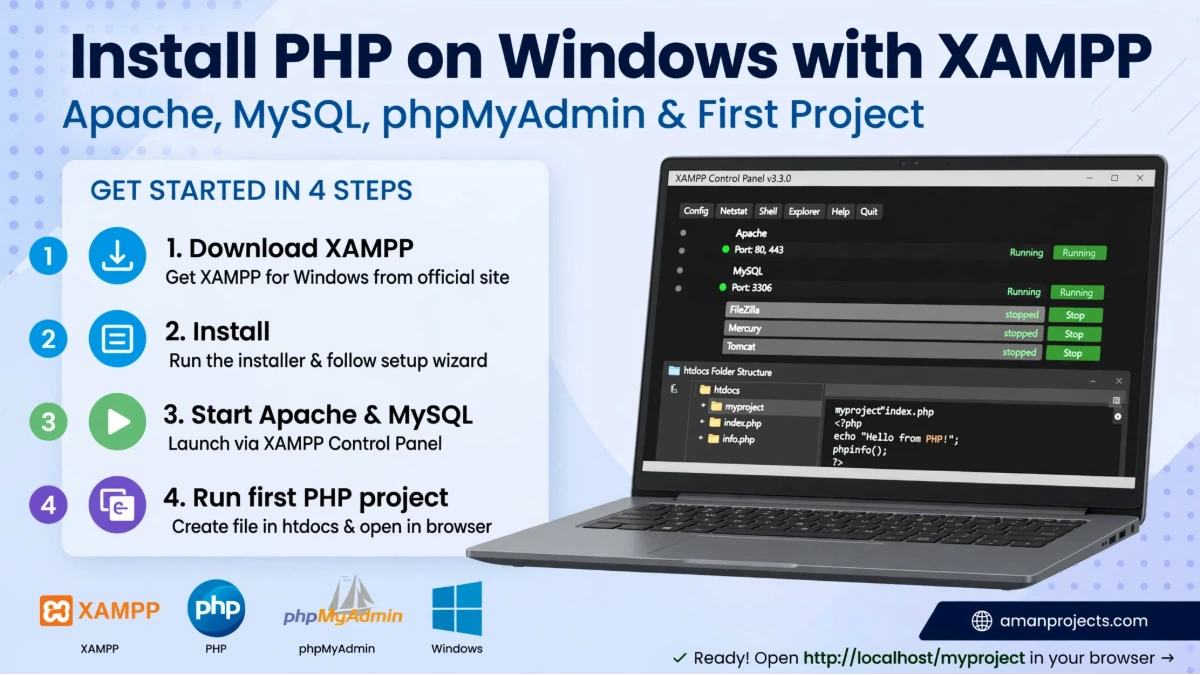
How to Install PHP on Windows / XAMPP Setup
If you want to start learning PHP on Windows, one of the easiest ways is to use XAMPP. Instead of manually installing and configuring PHP, Apache, and a database server separately, XAMPP provides the main tools you need in one package.
In this guide, we'll walk through how to install PHP on Windows using XAMPP and run your first PHP program locally.
What Is XAMPP?
XAMPP is a free local development environment that includes the tools commonly needed for PHP web development.
The name XAMPP comes from:
X – Cross-platform
A – Apache
M – MariaDB
P – PHP
P – Perl
For beginners, the important parts are Apache and PHP.
Apache works as the local web server, while PHP processes your PHP code.
What Do You Need Before Installing PHP?
Before starting, make sure you have:
A Windows computer
Internet access
Enough free storage
Administrator access if required
A web browser such as Chrome, Edge, or Firefox
You don't need a separate PHP installation if you're going to use the PHP version included with XAMPP.
Step 1: Download XAMPP
First, download XAMPP for Windows from the official Apache Friends website.
Choose the Windows version and download the installer.
When selecting a version, check the PHP version included with that particular XAMPP release. If you're working on an existing project, it's a good idea to use a PHP version compatible with that project.
Step 2: Run the XAMPP Installer
After downloading the installer, open it.
Windows may display a security prompt. Allow the installer to run if you trust the downloaded installer.
The XAMPP setup wizard will then open.
Click Next to continue.
Select Components
The installer lets you choose which components you want.
For basic PHP development, the important components include:
Apache
PHP
phpMyAdmin
MariaDB
You can leave the default selection if you're unsure.
Click Next.
Step 3: Choose the Installation Folder
XAMPP will ask where you want to install it.
A common location is:
C:\xampp
Using a simple folder such as C:\xampp makes it easier to find your PHP projects later.
Continue with the installation.
The installer will copy the required files to your computer.
Step 4: Open XAMPP Control Panel
Once installation is complete, launch the XAMPP Control Panel.
You'll see services such as:
Apache
MySQL / MariaDB
For a basic PHP project, start Apache.
If you also need a database, start MySQL/MariaDB.
When Apache starts successfully, its status should indicate that it is running.
Step 5: Check Whether PHP Is Working
Open your browser and visit:
http://localhost
If XAMPP is running correctly, you should see the XAMPP dashboard or local server page.
Now let's test PHP itself.
Go to the XAMPP web root:
C:\xampp\htdocs
Create a new folder:
myphp
Inside that folder, create a file named:
index.php
Add this code:
<?php

echo "Hello, PHP!";

?>
Save the file.
Now open:
http://localhost/myphp/
If everything is configured correctly, your browser should display:
Hello, PHP!
Congratulations! Your PHP environment is working.
Step 6: Check Your PHP Version
You can check the PHP version from the command line.
Open Command Prompt or PowerShell and run:
php -v
If PHP is correctly available in your system PATH, you'll see information about the installed PHP version.
However, there's an important point with XAMPP:
PHP can work through Apache even when the php command isn't available directly in Command Prompt.
This happens when the XAMPP PHP directory hasn't been added to the Windows PATH.
Step 7: Run PHP From the XAMPP Folder
If php -v doesn't work, you can run PHP directly from the XAMPP PHP directory.
Usually, XAMPP stores PHP here:
C:\xampp\php
Open Command Prompt and run:
cd C:\xampp\php
Then:
php -v
You should now see your PHP version.
This is useful when you're working with PHP CLI commands, Composer, Laravel, or other development tools.
Step 8: Add PHP to Windows PATH
If you want to run php from any directory, you can add the XAMPP PHP folder to your Windows PATH.
The folder is usually:
C:\xampp\php
How to Add PHP to PATH
Open Windows Search.
Search for Environment Variables.
Open Edit the system environment variables.
Click Environment Variables.
Find the
Pathvariable.Click Edit.
Add:
C:\xampp\php
Save the changes.
Close and reopen Command Prompt.
Now test:
php -v
If configured correctly, Windows should recognize the PHP command.
Step 9: Create Your First PHP Project
Your PHP projects should normally be placed inside:
C:\xampp\htdocs
For example:
C:\xampp\htdocs\mywebsite
Inside the folder:
mywebsite
├── index.php
├── about.php
├── contact.php
└── style.css
You can access the project through:
http://localhost/mywebsite/
This is one of the simplest ways to develop PHP websites locally.
Step 10: Using phpMyAdmin
If your PHP application needs a database, XAMPP also provides phpMyAdmin.
Start MySQL/MariaDB from the XAMPP Control Panel and open:
http://localhost/phpmyadmin/
From phpMyAdmin, you can create databases, tables, users, and manage your local database.
For example, you might create a database called:
mywebsite
Your PHP application can then connect to that database.
Common XAMPP Problems
Apache Is Not Starting
One of the most common problems is another application already using Apache's ports.
Apache commonly uses ports such as:
80
443
If another application is using the same port, Apache may fail to start.
Check the error message in the XAMPP Control Panel before changing any configuration.
Port 80 Is Already in Use
If port 80 is occupied, you can configure Apache to use another port, such as:
8080
Your website would then be accessed using:
http://localhost:8080/mywebsite/
Don't change ports randomly. First identify which application is using the port.
php Command Is Not Recognized
If you see an error similar to:
'php' is not recognized as an internal or external command
PHP may not be included in your Windows PATH.
You can either run PHP from:
C:\xampp\php
or add that directory to the PATH environment variable.
PHP File Downloads Instead of Running
If your browser downloads the .php file instead of executing it, Apache/PHP may not be configured correctly.
Make sure:
Apache is running.
The file is inside
htdocs.The file has a
.phpextension.You're opening the file through
http://localhost/...rather than directly opening it from Windows Explorer.
XAMPP vs Manual PHP Installation
For beginners, XAMPP is usually easier because it bundles several development components together.
FeatureXAMPPManual SetupPHP installationEasyRequires configurationApacheIncludedInstall separatelyDatabaseIncludedConfigure separatelyphpMyAdminIncludedInstall separatelyBeginner friendlyYesMore technicalVersion controlLess flexibleMore flexibleIf you're just starting PHP, XAMPP can save a lot of setup time.
For advanced development, however, you may eventually want more control over PHP versions, web servers, Composer, and project-specific environments.
Final Thoughts
Setting up PHP on Windows doesn't have to be complicated. With XAMPP, you can get a local PHP development environment running without manually configuring every component.
The basic workflow is simple:
Install XAMPP
      ↓
Start Apache
      ↓
Create project inside htdocs
      ↓
Create index.php
      ↓
Open localhost
      ↓
Start coding
Once your PHP environment is working, the next things to learn are PHP variables, conditions, loops, functions, forms, MySQL, sessions, and object-oriented programming.
And when you're comfortable with core PHP, you can move into frameworks such as Laravel and start building larger, production-style applications.
Frequently Asked Questions
Is XAMPP required to run PHP on Windows?
No. PHP can be installed and configured manually. XAMPP is simply one of the easiest options for beginners because it provides PHP, Apache, and database tools together.
Where should I put PHP files in XAMPP?
Normally, PHP projects go inside:
C:\xampp\htdocs
How do I open a PHP project in the browser?
If your project is inside C:\xampp\htdocs\myproject, open:
http://localhost/myproject/
How do I check my PHP version?
Run:
php -v
If the command isn't recognized, run it from the XAMPP PHP directory or add C:\xampp\php to your Windows PATH.
Can I use XAMPP for Laravel?
Yes. XAMPP can provide the PHP and database environment needed for Laravel development. Laravel projects also require tools such as Composer and a compatible PHP version.